Update (29/10/2026): We have plenty of stock of all our products, find us also in and    How to get a quotation

How to configure u-blox ZED-X20P, ZED-X20D

Introduction

This page covers the u-blox ZED-X20 GNSS receivers, including both the X20P and X20D variants. It provides a step-by-step guide to the basic usage of u‑center 2—the software designed for performance evaluation, in-depth analysis, and configuration of u‑blox receivers.

Get started

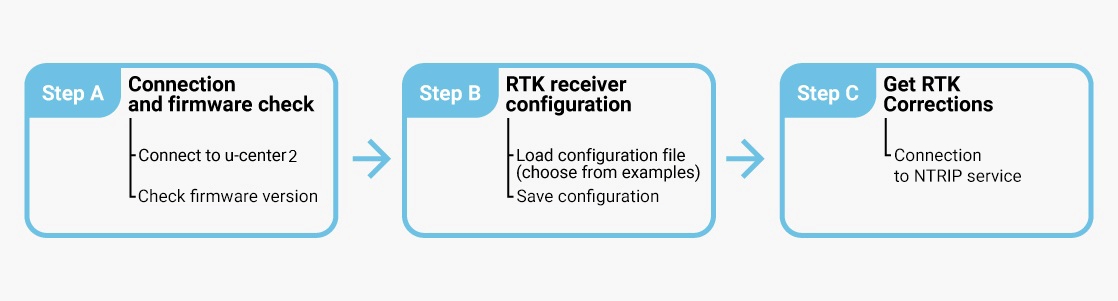
To use the board with the ZED-X20, you basically need to go through the following steps to achieve an RTK fix and reach centimeter-level accuracy with your RTK board.

Connect to u-center 2
  1. Download u-center 2 for Windows 10/11 (64-bit). Important: Select the build for u-blox M10/F10/X20 products, not the older release for M8/M9/F9 or legacy GNSS receivers.
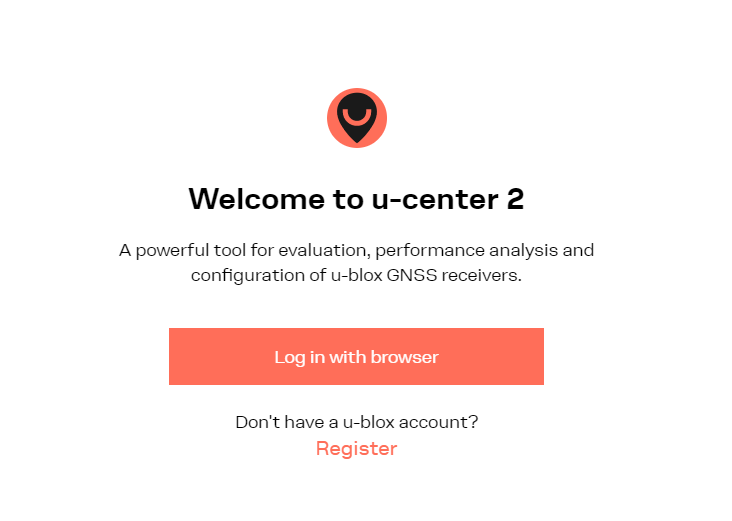
  2. After installation completes, enter your u-blox Support Portal credentials and log in via your browser. If you don’t have an account, click Register.
  1. An internet connection is required for the first login, but once u-center 2 has started, it can be used offline in subsequent sessions.

  1. Connect the GNSS antenna to your receiver. For functional testing, position the antenna with a clear, unobstructed view of the sky; otherwise, you won’t acquire satellite signals.
  2. Connect the receiver to your PC using the USB port labelled POWER+GPS.

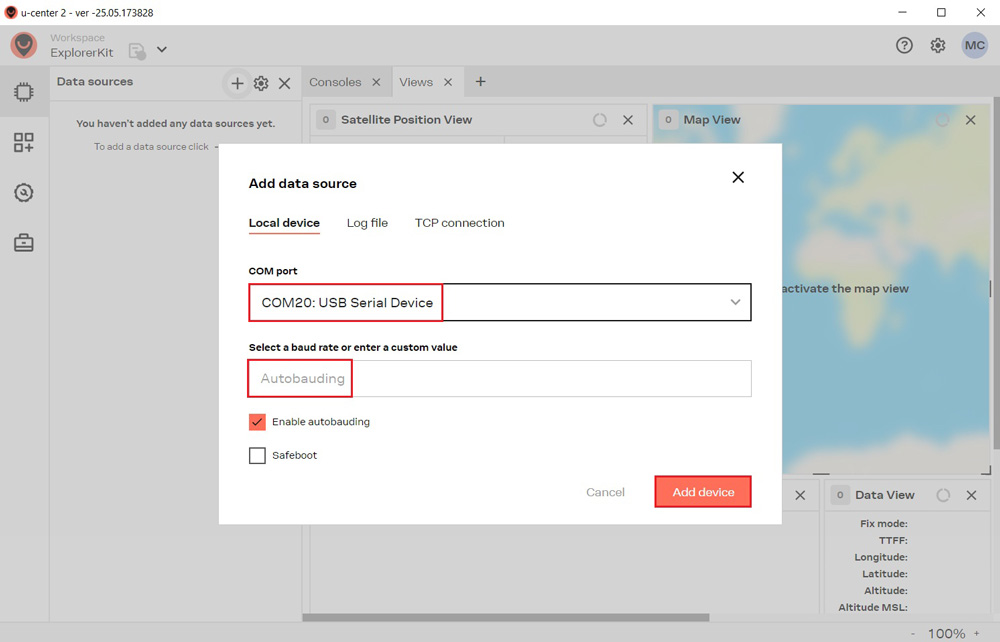
  1. Click Devices on the left menu bar, then click the + icon. Select the device’s COM port and choose Autobauding for automatic baud rate detection. Finally, click Add device.

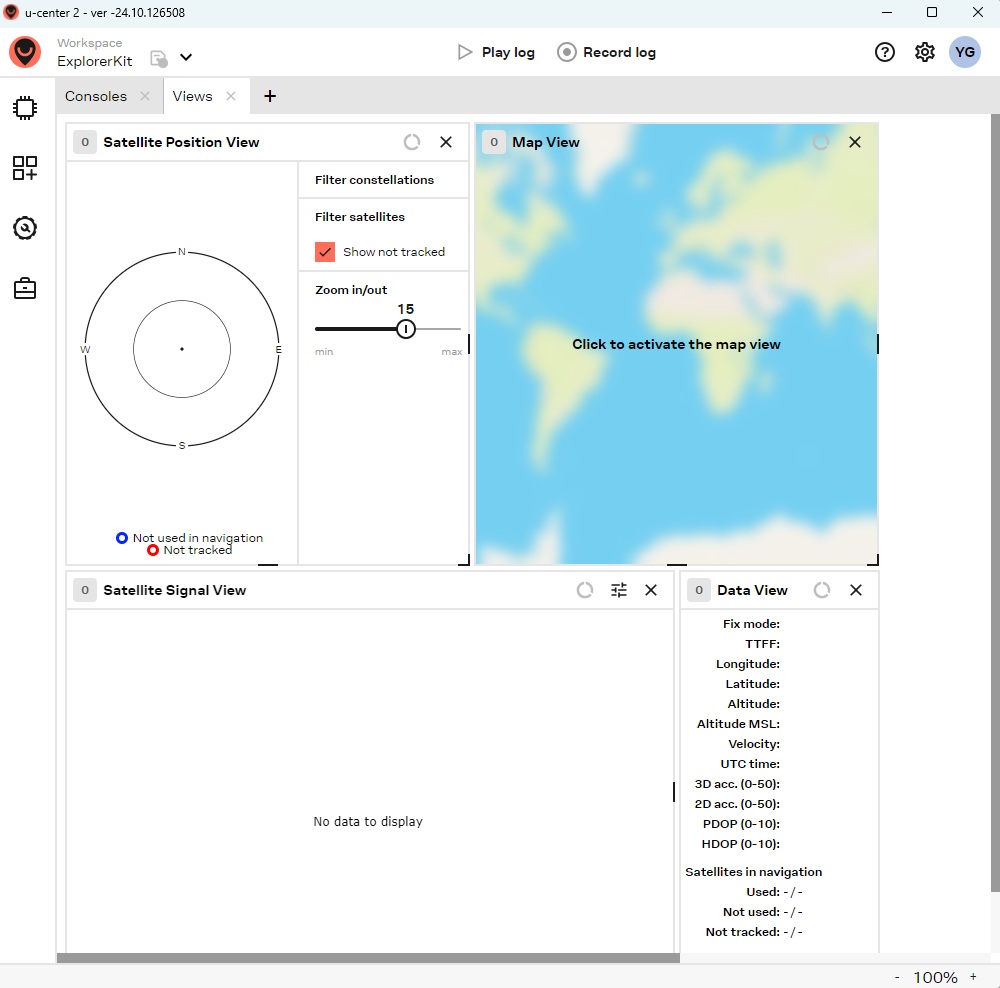
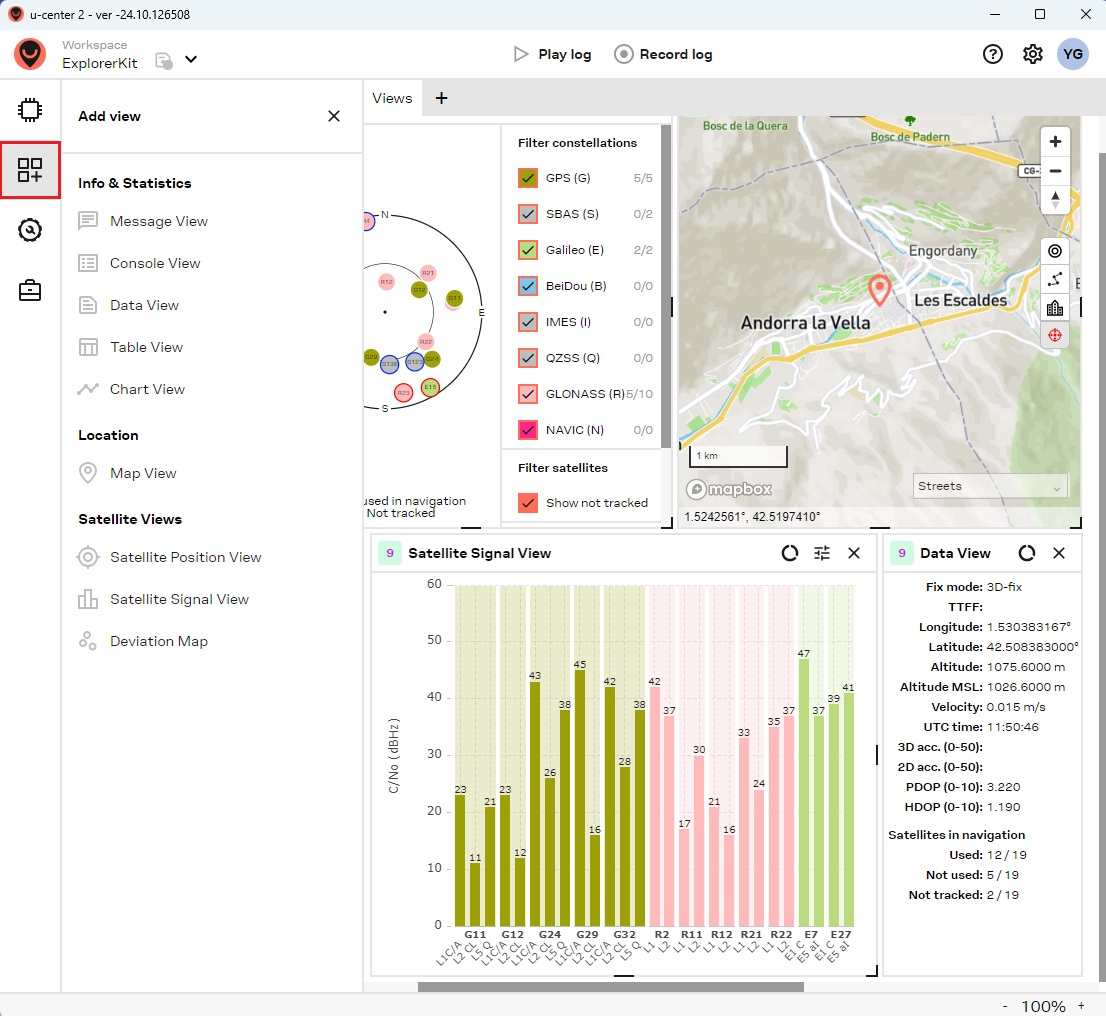
  1. To add your preferred views, click the Add View icon located in the left menu bar.

Check firmware version
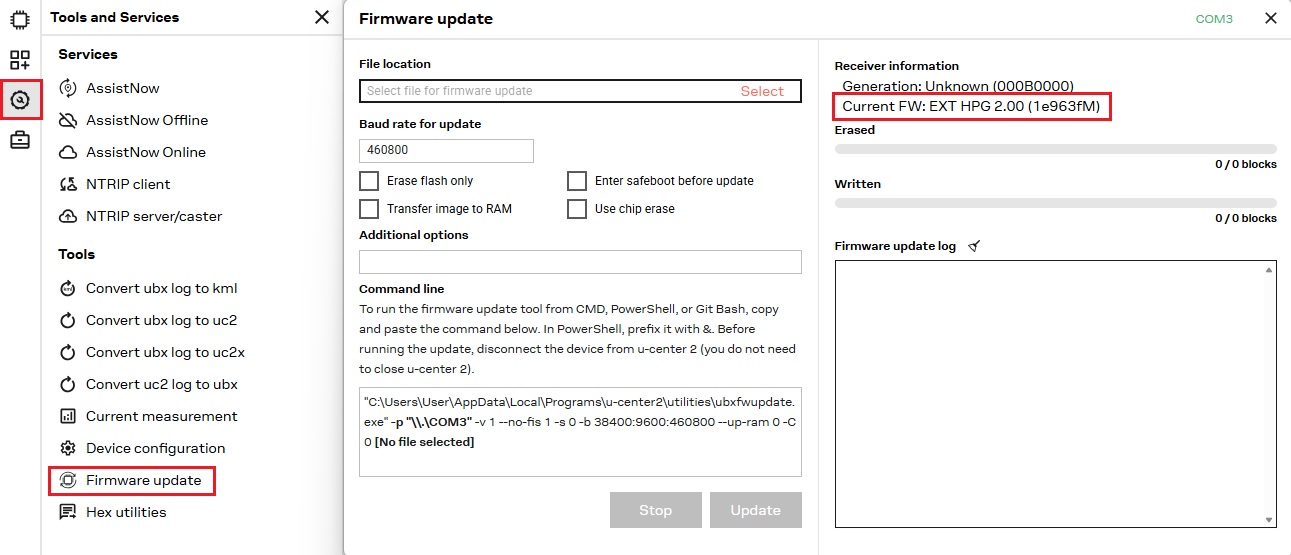
  1. To check the firmware version, navigate to Tools and Services > Firmware update. The current firmware version is displayed under Receiver information.

To assist you in configuring your ZED-X20 receiver, we have prepared several example configuration files.

Load a configuration file
  1. Find the configuration file that best fits your project requirements in the table below and click to download it to your PC. These configuration files are based on firmware version 2.11. Before loading a config file, please follow Step 8 above to check your firmware version, and update it if necessary.

Configuration File
Base
Details
This will set your receiver as a base station using Survey-in mode with accuracy 2.5m and 60s.
Starting from default ZED-X20P configuration.
Enable high precision:
  • CFG-NMEA-HIGHPREC - 1
Disable SBAS:
  • CFG-SIGNAL-SBAS_ENA - 0
Baud rate on UART1 and UART2 to 115’200bps:
  • CFG-UART1-BAUDRATE - 115200
  • CFG-UART2-BAUDRATE – 115200
Enable GST on all ports:
  • CFG-MSGOUT-NMEA_ID_GST_UART1 - 1
  • CFG-MSGOUT-NMEA_ID_GST_UART2 - 1
  • CFG-MSGOUT-NMEA_ID_GST_USB - 1
Enable NAV-SVIN and NAV-PVT on USB:
  • CFG-MSGOUT-UBX_NAV_SVIN_USB - 1
  • CFG-MSGOUT-UBX_NAV_PVT_USB - 1
Enable survey-in mode with an accuracy of 2.5 meters and 60 seconds duration:
  • CFG-TMODE-MODE – 1 (Survey-in)
  • CFG-TMODE-SVIN_ACC_LIMIT – 25000 (2500 mm)
  • CFG-TMODE-SVIN_MIN_DUR – 60 (60 s)
Enable specific RTCM messages on UART2 and USB:
  • CFG-MSGOUT-RTCM_3X_TYPE1005_UART2 – 1
  • CFG-MSGOUT-RTCM_3X_TYPE1005_USB – 1
  • CFG-MSGOUT-RTCM_3X_TYPE1074_UART2 – 1
  • CFG-MSGOUT-RTCM_3X_TYPE1074_USB – 1
  • CFG-MSGOUT-RTCM_3X_TYPE1084_UART2 – 1
  • CFG-MSGOUT-RTCM_3X_TYPE1084_USB – 1
  • CFG-MSGOUT-RTCM_3X_TYPE1094_UART2 – 1
  • CFG-MSGOUT-RTCM_3X_TYPE1094_USB – 1
  • CFG-MSGOUT-RTCM_3X_TYPE1124_UART2 – 1
  • CFG-MSGOUT-RTCM_3X_TYPE1124_USB – 1
  • CFG-MSGOUT-RTCM_3X_TYPE1230_UART2 – 1
  • CFG-MSGOUT-RTCM_3X_TYPE1230_USB – 1
Base_2.11
Rover 1Hz
Details
This will set your receiver as a rover at 1Hz update rate.
Starting from a default ZED-X20P configuration.
Enable high precision:
  • CFG-NMEA-HIGHPREC - 1
Disable SBAS:
  • CFG-SIGNAL-SBAS_ENA - 0
Baud rate on UART1 and UART2 to 115’200bps:
  • CFG-UART1-BAUDRATE - 115200
  • CFG-UART2-BAUDRATE - 115200
Enable GST on all ports:
  • CFG-MSGOUT-NMEA_ID_GST_UART1 - 1
  • CFG-MSGOUT-NMEA_ID_GST_UART2 - 1
  • CFG-MSGOUT-NMEA_ID_GST_USB - 1
Enable on USB NAV-PVT and RXM-COR:
  • CFG-MSGOUT-UBX_NAV_PVT_USB - 1
  • CFG-MSGOUT-UBX_RXM_COR_USB - 1
Rover_1Hz_2.11
Rover 25Hz
Details
This will set your receiver as a rover at 25Hz update rate.
Starting from a Rover 1Hz configuration.
Disable on USB NAV-PVT and RXM-COR:
  • CFG-MSGOUT-UBX_NAV_PVT_USB – 0 (default)
  • CFG-MSGOUT-UBX_RXM_COR_USB – 0 (default)
Disable GSV and GSA message on all ports:
  • CFG-MSGOUT-NMEA_ID_GSV_UART1 - 0
  • CFG-MSGOUT-NMEA_ID_GSV_UART2 - 0
  • CFG-MSGOUT-NMEA_ID_GSV_USB - 0
  • CFG-MSGOUT-NMEA_ID_GSA_UART1 - 0
  • CFG-MSGOUT-NMEA_ID_GSA_UART2 - 0
  • CFG-MSGOUT-NMEA_ID_GSA_USB – 0
Set update rate to 25Hz:
  • CFG-RATE-MEAS – 40 (0.04 seconds)
Rover_25Hz_2.11
Rover 1Hz + Galileo HAS corrections
Details
This will set your receiver as a rover at 1Hz update rate including Galileo HAS corrections.
Starting from a Rover 1Hz configuration.
Disable on USB NAV-PVT and RXM-COR:
  • CFG-MSGOUT-UBX_NAV_PVT_USB – 0 (default)
  • CFG-MSGOUT-UBX_RXM_COR_USB – 0 (default)
Disable HOST and enable GAL_HAS:
  • CFG-NAVCOR-ENABLE_HOST - 0
  • CFG-NAVCOR-ENABLE_GAL_HAS – 1
Rover_1Hz_GAL_HAS_2.11
Rover 1Hz + send NMEA messages to Bluetooth, BLE, or radio plugin
Details
This configuration allows you to connect the receiver to your mobile device via Bluetooth, BLE, or use radio and other communication plugins on Xbee socket.
Starting from rover 1Hz configuration.
Disable on USB NAV-PVT and RXM-COR:
  • CFG-MSGOUT-UBX_NAV_PVT_USB – 0 (default)
  • CFG-MSGOUT-UBX_RXM_COR_USB – 0 (default)
Enable NMEA out protocol in UART2:
  • CFG-UART2OUTPROT-NMEA – 1
Rover_1Hz_plugin_2.11
Rover 1Hz + send GGA messages to 4G NTRIP plugin
Details
This configuration file allows connection to NTRIP client with VRS mountpoints.
Starting from rover 1Hz configuration.
Disable on USB NAV-PVT and RXM-COR:
  • CFG-MSGOUT-UBX_NAV_PVT_USB – 0 (default)
  • CFG-MSGOUT-UBX_RXM_COR_USB – 0 (default)
Enable NMEA out protocol in UART2:
  • CFG-UART2OUTPROT-NMEA – 1
Disable all NMEA messages on UART2 but GGA:
  • CFG-MSGOUT-NMEA_ID_GST_UART2 – 0 (default)
  • CFG-MSGOUT-NMEA_ID_GLL_UART2 – 0
  • CFG-MSGOUT-NMEA_ID_GSA_UART2 - 0
  • CFG-MSGOUT-NMEA_ID_GSV_UART2 - 0
  • CFG-MSGOUT-NMEA_ID_RMC_UART2 - 0
  • CFG-MSGOUT-NMEA_ID_VTG_UART2 – 0
Rover_1Hz_4G_2.11
Post-processing RAW data (PPK) at 1Hz
Details
This configuration file allows output RAW data.
Starting from rover 1Hz configuration.
Disable on USB NAV-PVT and RXM-COR:
  • CFG-MSGOUT-UBX_NAV_PVT_USB – 0 (default)
  • CFG-MSGOUT-UBX_RXM_COR_USB – 0 (default)
Enable UBX out protocol in UART2:
  • CFG-UART2OUTPROT-UBX – 1
Enable RAWX and SFRBX UBX messages on all ports:
  • CFG-MSGOUT-UBX_RXM_RAWX_UART1 – 1
  • CFG-MSGOUT-UBX_RXM_RAWX_UART2 – 1
  • CFG-MSGOUT-UBX_RXM_RAWX_USB - 1
  • CFG-MSGOUT-UBX_RXM_SFRBX_UART1 - 1
  • CFG-MSGOUT-UBX_RXM_SFRBX_UART2 - 1
  • CFG-MSGOUT-UBX_RXM_SFRBX_USB - 1
PPK_2.11
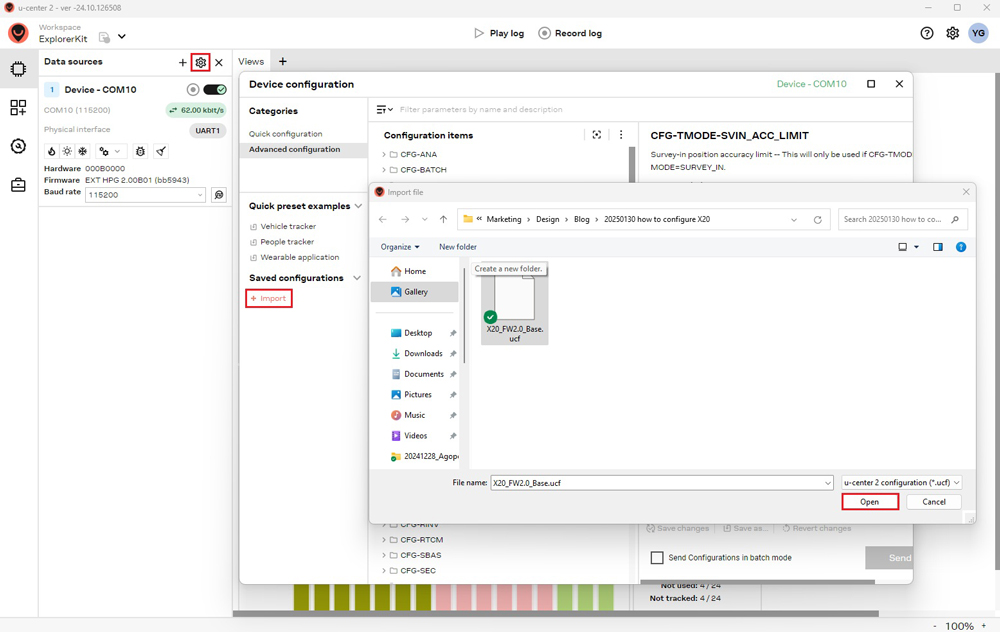
  1. In the menu bar, click the gear icon to open Device Configuration. Under Saved Configurations, click +Import, choose your configuration file, and click Open to import it.

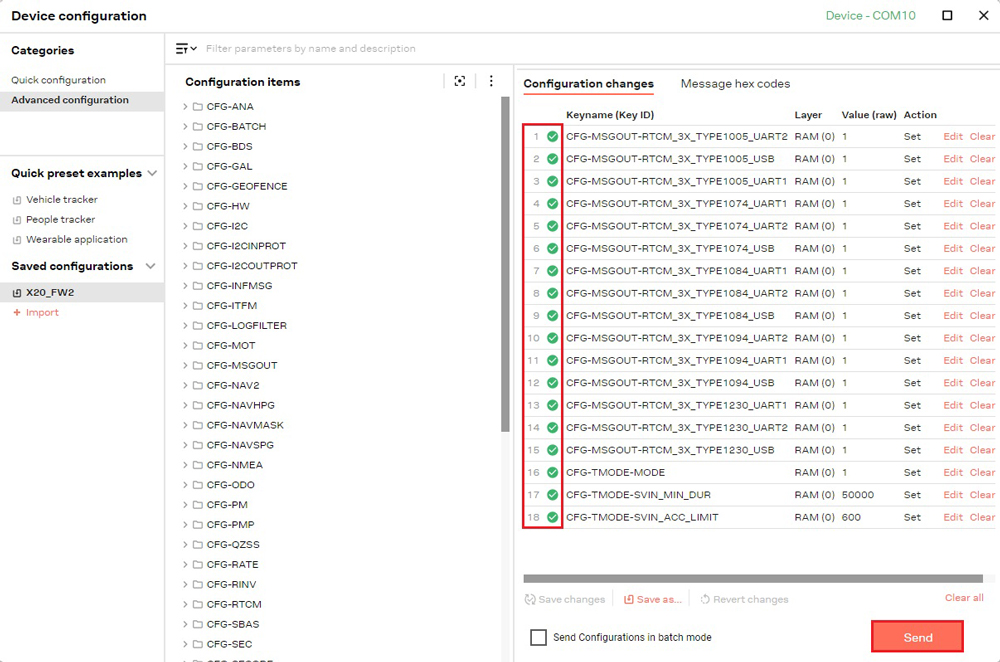
  1. Click Send. A green check mark will appear under Configuration changes to confirm the action.

To achieve centimeter-level accuracy with GNSS receivers, RTK corrections are required. There are two ways to obtain them:

NTRIP correction service

NTRIP (Networked Transport of RTCM via Internet Protocol) is a protocol for streaming GNSS data over the internet. It enables the transmission of real-time correction data from a reference station to a rover or user device.

To obtain credentials (server address, port, username, and password), search for available RTK correction services in your country.

  1. Connecting to the caster for correction data requires either UBX-NAV-PVT or NMEA GGA messages to be enabled. If you load our Rover configuration file, this step is not necessary.

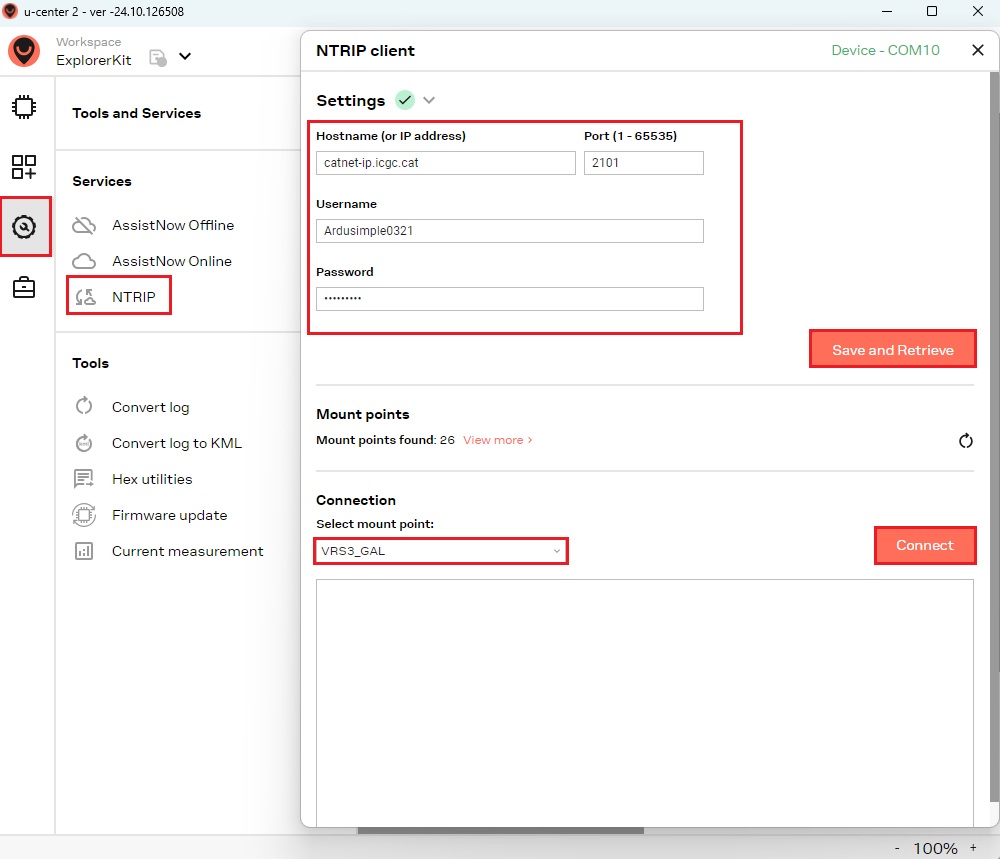
  1. Navigate to Tools and Services > Services > NTRIP. Enter the hostname (or IP address), port, username, and password for the NTRIP caster. Click Save and Retrieve to fetch available mount points, then select one and click Connect.

  1. You can also connect to NTRIP via your mobile device — a convenient option for fieldwork. For more details, see our tutorial: How to Use Centimeter GPS with Any Android App (Mock Location).

  1. You can also connect to NTRIP corrections using any of our communication plugins listed below. For more details, refer to each product’s User Guide.

Base-Rover Corrections
  1. A Base-Rover setup requires two RTK receivers: one configured as a Base that sends correction data via a radio module to the other receiver configured as a Rover. Alternatively, you can use one of our pre-configured GNSS RTK base and rover kits.

Advanced functionality

Firmware update

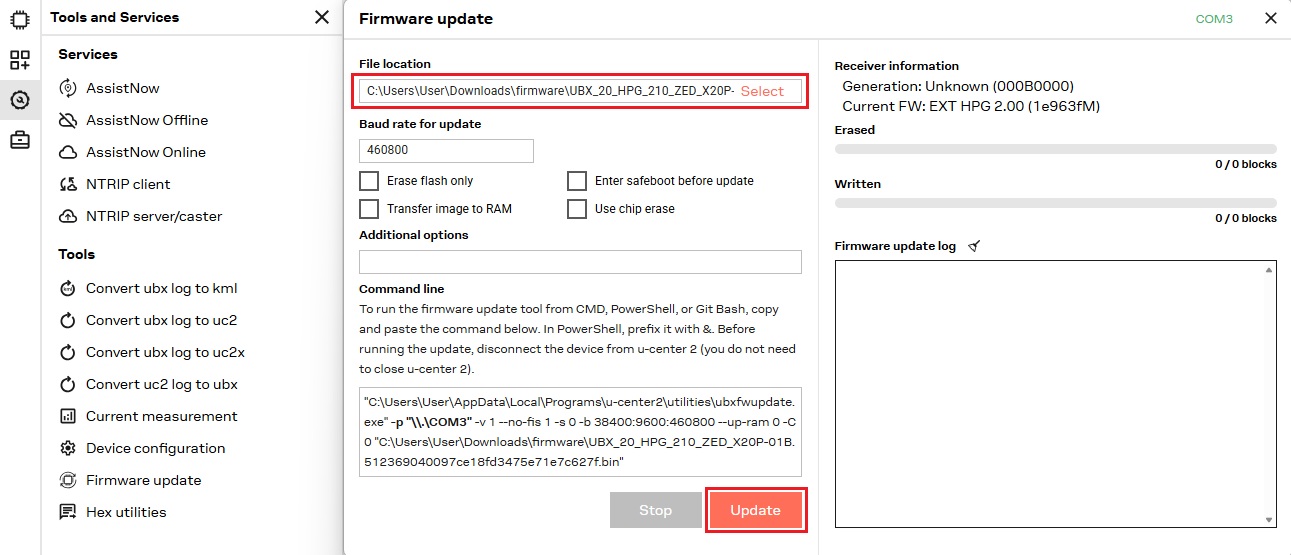
  1. In some cases you will need to update the firmware version:
    • ZED-X20P module: If firmware is below version 2.10 (20 May 2026), an update is required.
    • ZED-X20D module: If firmware is below version 2.00 (1 July 2026), an update is required.
  1. Download the latest firmware for your receiver, select the file from your drive, and click Update.
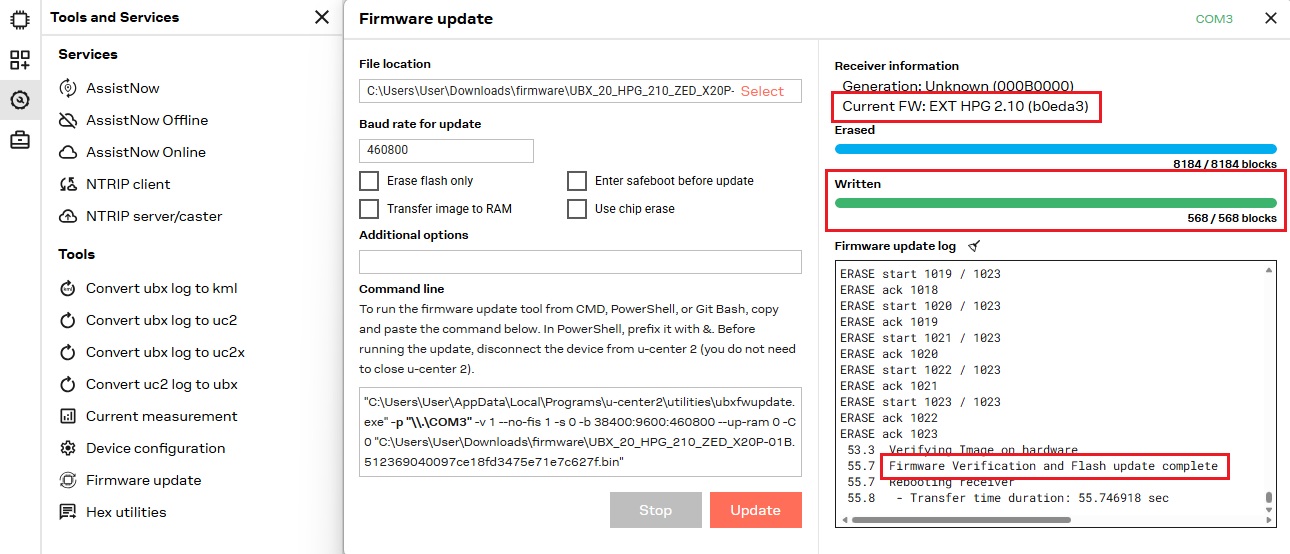
  1. After the process has finished, a Firmware update complete message will appear.

Custom configuration

If you wish to create a custom configuration for the receiver or enable/disable specific messages, the following steps will guide you through the process:

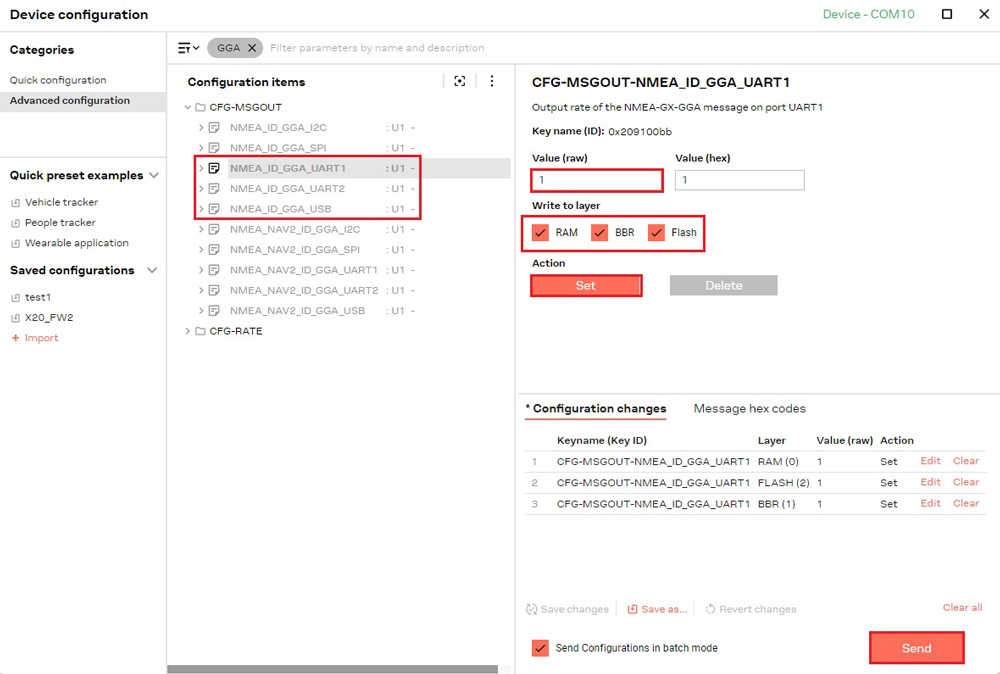
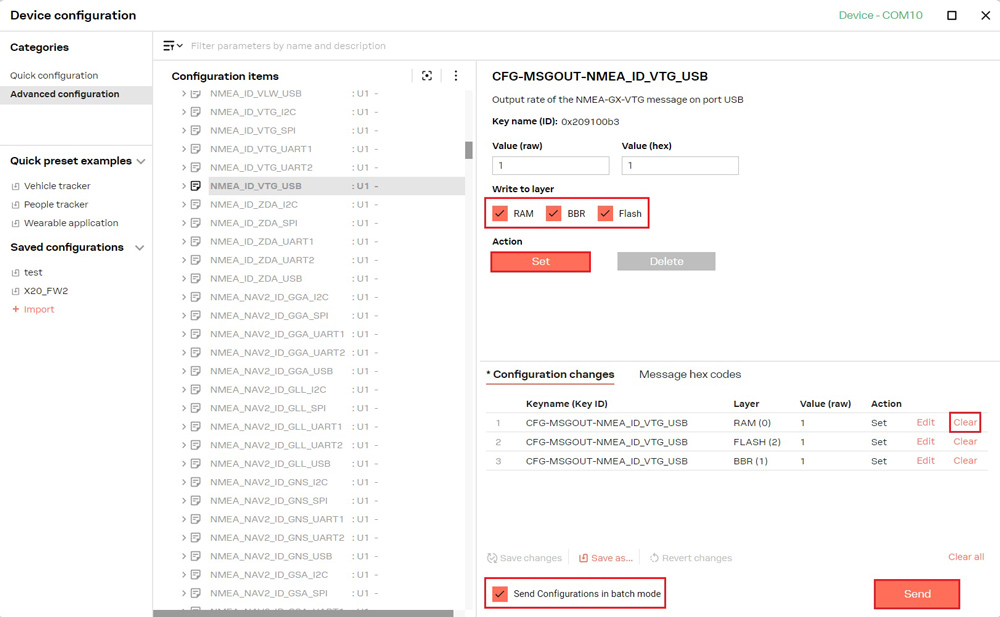
  1. Select the configuration items to be modified. After adjusting the values, choose the layers to which the changes should be written. For temporary changes, select RAM (settings will be lost after a device reset). To retain changes permanently, select RAM, BBR, and Flash.

  1. Click Set. The item, its value, and the selected layers will be added to the Configuration changes list.
  2. Repeat steps 8 through 9 to build your list of configuration changes.
  3. Review the list of changes to be sent to the device. To reorder, drag an item to a new position within the Configuration changes list. To remove an item, select Clear. By default, each property is sent as a separate UBX message. Selecting Send configuration in batch mode groups all properties for each layer into a single UBX message, reducing the total number of messages and speeding up the transmission.
  4. Click Send to apply the changes to your device.
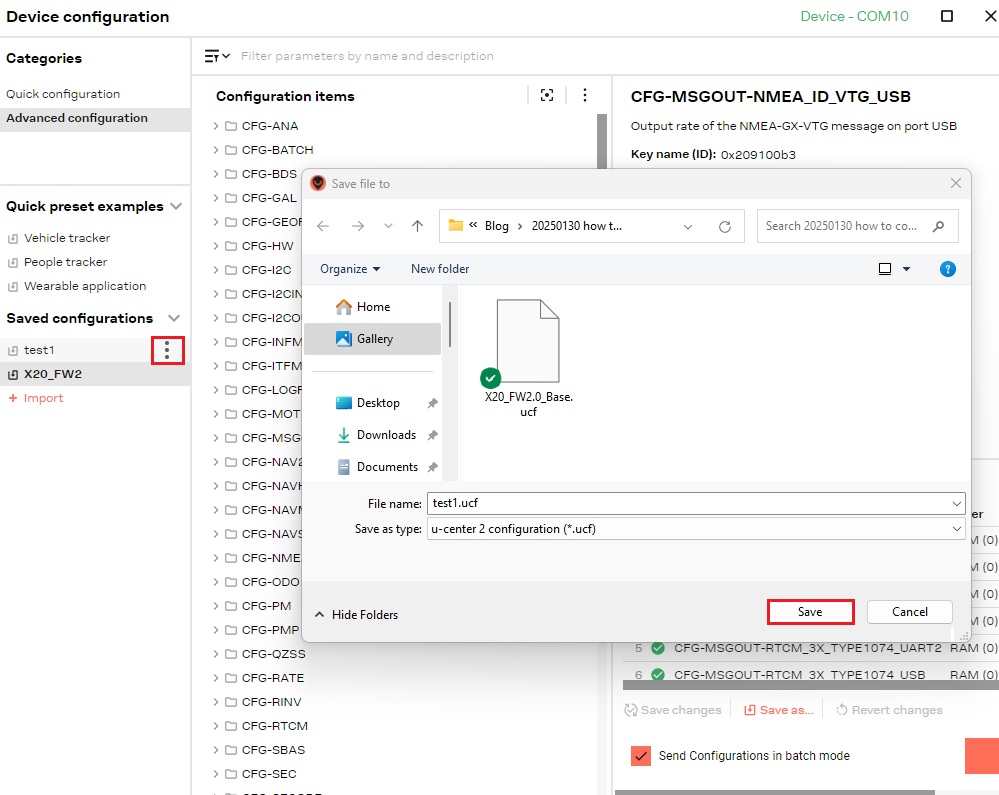
  5. To save the current change list as a preset, click Save as… — it will then appear under Saved configurations.

Create your own configuration file

The configuration can be exported as a local .ucf file, which facilitates use with other receivers.

  1. Select the desired configuration, click the three-dot icon, and select Export. Choose your destination folder and file name, then click Save. The exported .ucf file will be saved to the specified folder.

Enable Galileo HAS

Galileo High Accuracy Service (HAS) is a free service that improves GNSS positioning accuracy from roughly 1–2 meters to about 20 centimeters under good conditions. It broadcasts corrections directly via Galileo satellites, eliminating the need for a local base station or paid subscription — ideal for remote areas without internet or radio link infrastructure.

Starting with firmware version 2.10, Galileo HAS corrections become available for the u-blox X20P module. To enable Galileo HAS functionality, please follow the steps outlined below.

  1. Ensure your module is running firmware 2.10 or later. If not, update to the latest version by following the Firmware update section of this guide.
  2. Load the Rover 1Hz with Galileo HAS corrections configuration file by following the steps in the Load a configuration file section of this guide.
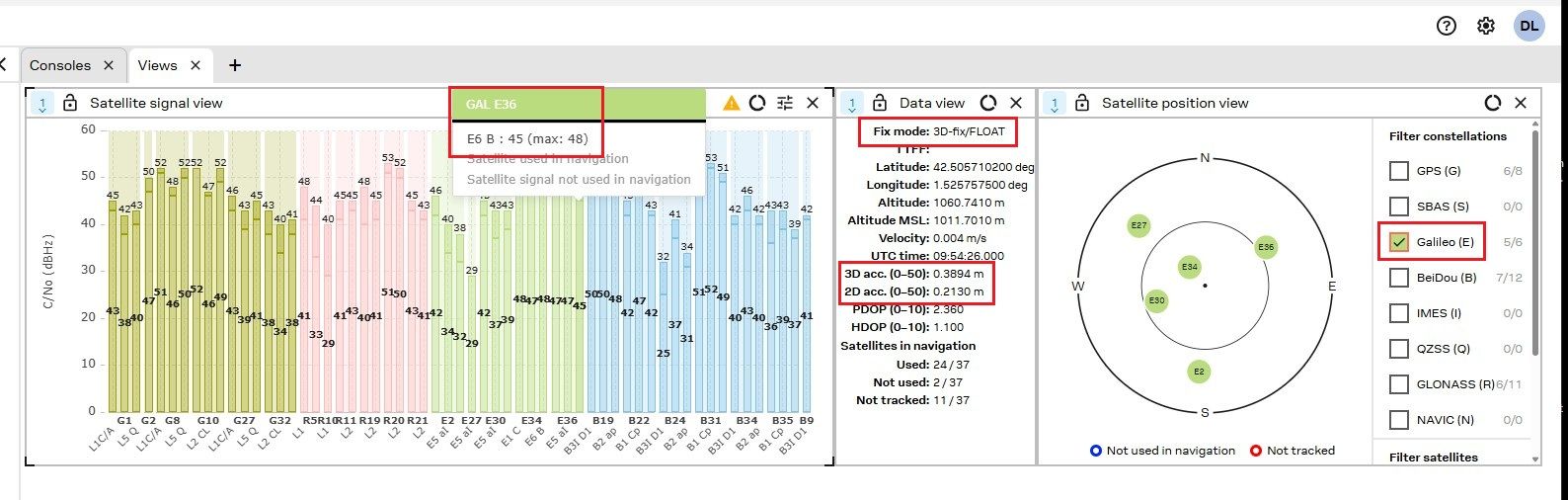
  3. Once the configuration has been loaded, the NTRIP functionality will cease to operate. However, it is not required as long as the receiver is receiving Galileo satellites with an E6-B signal. These satellites will deliver HAS corrections to the receiver, enhancing accuracy to a decimeter level (indicated by an RTK Float fix type).

Heading configuration (ZED-X20D)

The following section is applicable exclusively to users of the simpleRTK 4 Dual equipped with the u-blox ZED-X20D module. It does not apply to users of the simpleRTK 4 Optimum with the ZED-X20P module.

Follow this dual-antenna installation guide to get accurate heading data from the u-blox ZED-X20D module.

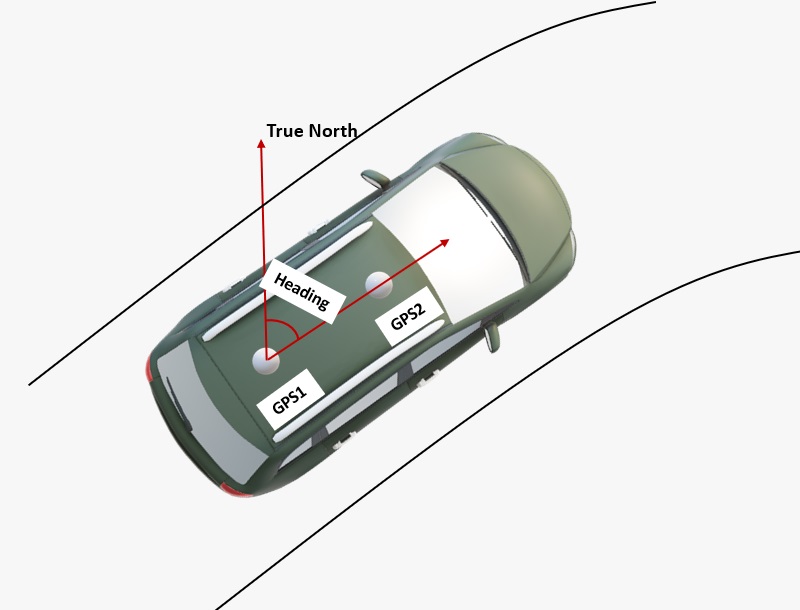
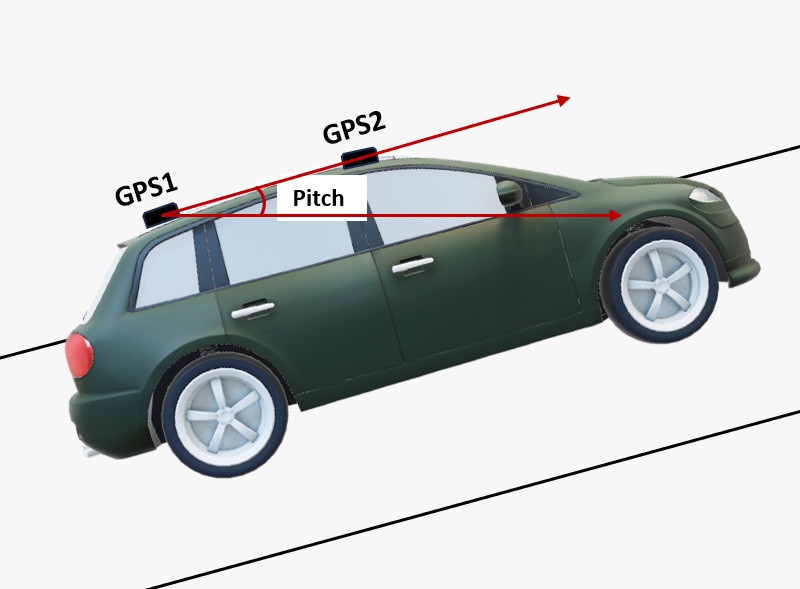
  1. The heading output represents the clockwise angle from True North to the vector defined by the baseline extending from the master antenna (designated as GPS1 on the board) to the slave antenna (designated as GPS2). The pitch angle denotes the inclination of the vehicle or drone with respect to the horizontal plane.
  2. By default, the antennas should be mounted longitudinally along the vehicle’s axis, with the master antenna (designated as GPS1) located at the rear.
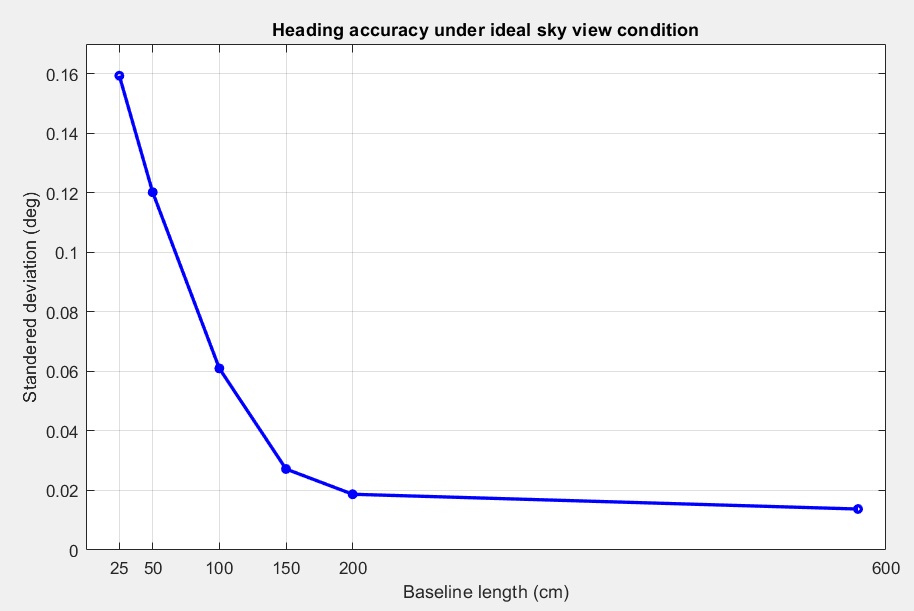
  1. Heading accuracy depends on antenna separation — the longer the baseline, the better the accuracy. A 1‑meter baseline is typically needed for sub‑degree precision, though this isn’t always practical for many vehicles. With a quality setup, 0.5 meters can still give good results, while 0.3 meters will work but may produce a noisier output.

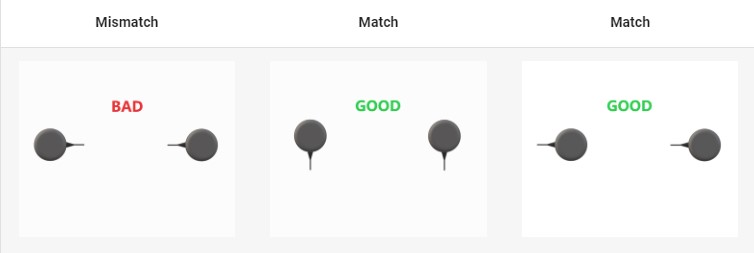
  1. For optimal performance, both GNSS antennas should be identical and oriented consistently with respect to one another — for instance, the antenna cables should exit from the same side on each unit. This ensures proper alignment of the RF phase centers, which is essential for heading accuracy (note that the actual RF phase center is frequently offset from the antenna’s physical center). Furthermore, the RF cable lengths for both antennas must be identical to achieve the best possible results.
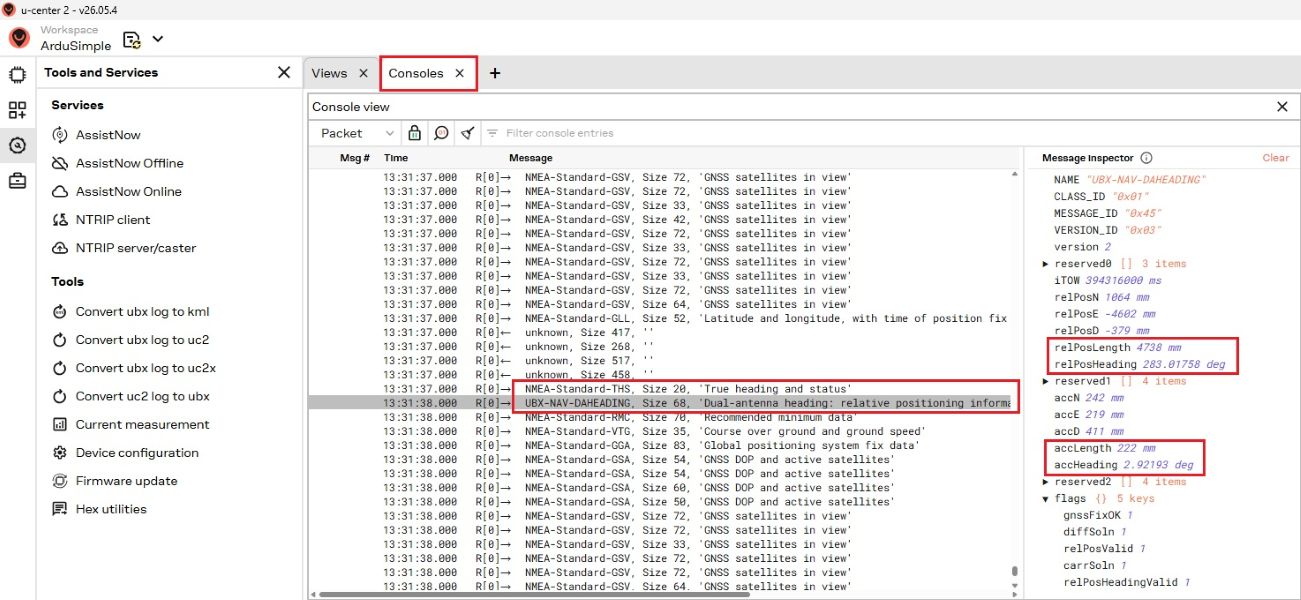
  1. All heading output information — including the position vector, heading from antenna 1 to antenna 2, and corresponding accuracy figures — is available within the UBX-NAV-DAHEADING message. The CFG-NAVSPGDAHEADING_OFFSET configuration item allows the final heading value reported in the NMEA THS (true heading and status) message to reflect the vehicle’s forward direction rather than the antenna baseline.

Record log file

Your u‑center 2 software session can be recorded during runtime and replayed at any time to simulate field conditions for debugging and testing purposes.

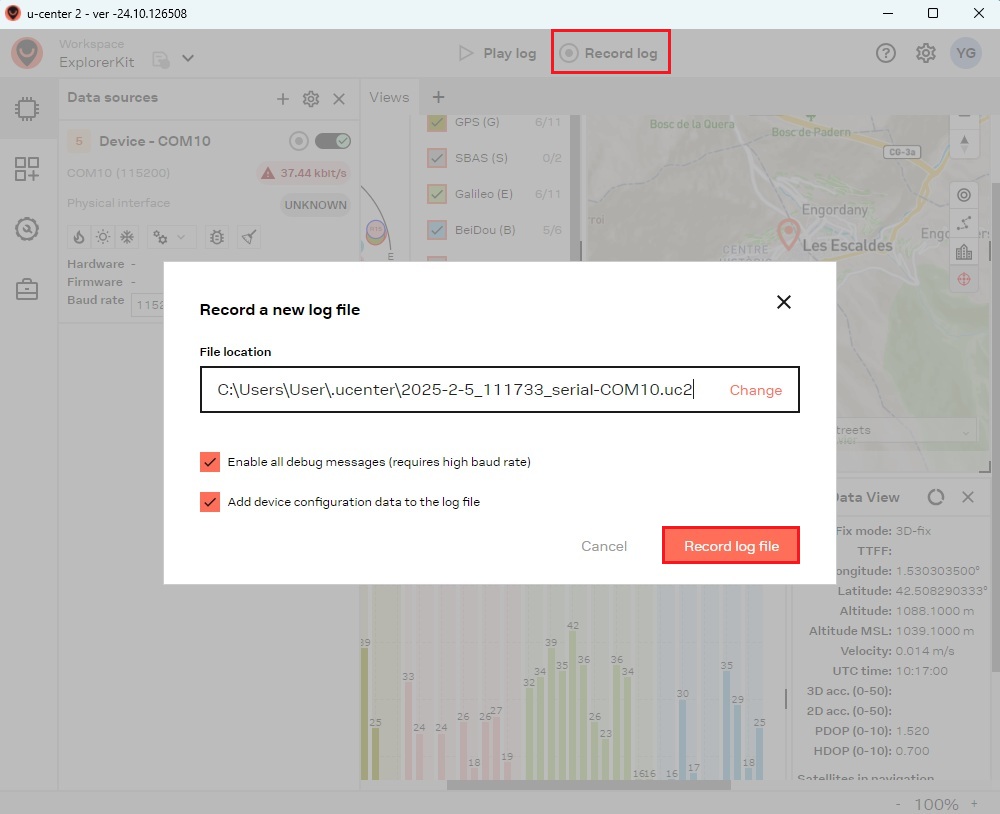
  1. Click the Record log button. In the dialog box that appears, specify the file location by clicking Change and entering the desired log file name. Click Record log to begin recording.
  1. Click Stop recording to finish. Two log files will be saved: one with a .uc2 extension and one with a .ubx extension. The .ubx file is for backwards compatibility with legacy scripts and older u‑center versions — it cannot be used directly by u‑center 2. Only .uc2 files can be played back in u‑center 2.

Play log file

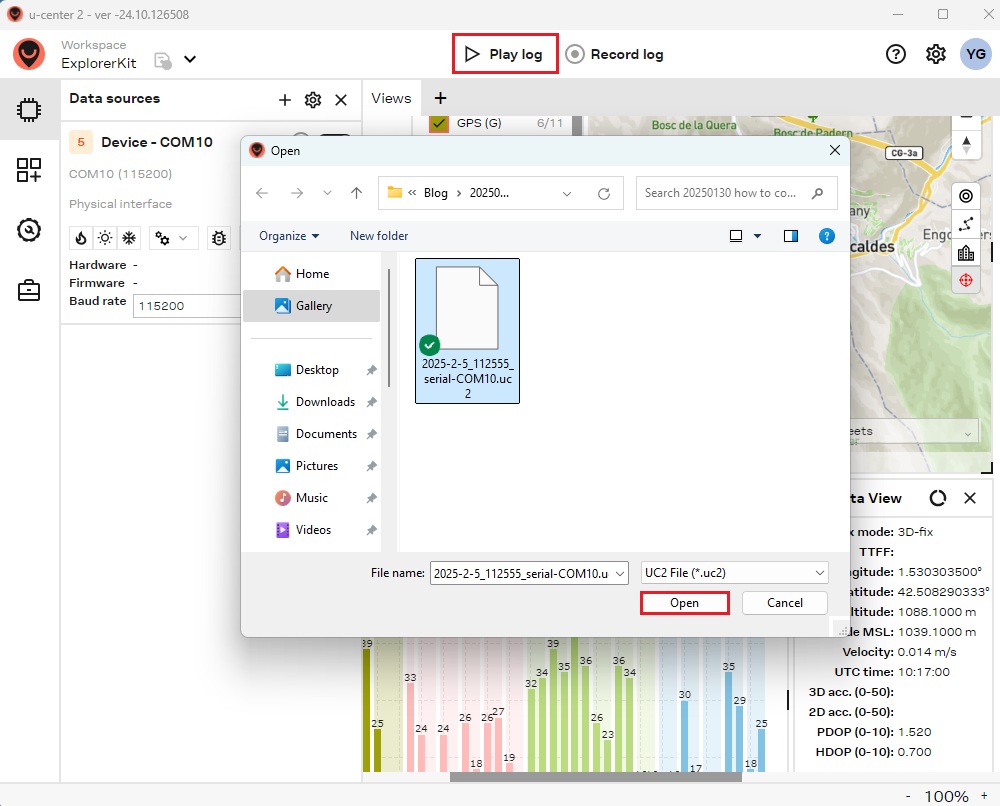
  1. To play an existing log file, click the Play log button, select a log file, and click Open.

Documentation

If you are an advanced user seeking detailed information, please refer to the u-center 2 User Guide and ZED-X20 interface description.

Got any questions or requests?
Contact us! We'll answer <24 hours!

Contact ArduSimple
Close

Access your Account and orders

Or

New customer? Create your account
ArduSimple – high precision RTK survey equipment and solutions made simple

Want to learn more about GPS and RTK?

If you are busy right now, our engineers can send you 3 short e-mails, explaining all you need to know to start your project.